

Your AI assistant, right beside you.
Comigo lives on your Mac like a secretary sitting next to you. It follows your screen and audio in real time and keeps giving you insights, tips, suggestions and explanations, so you never miss a detail.
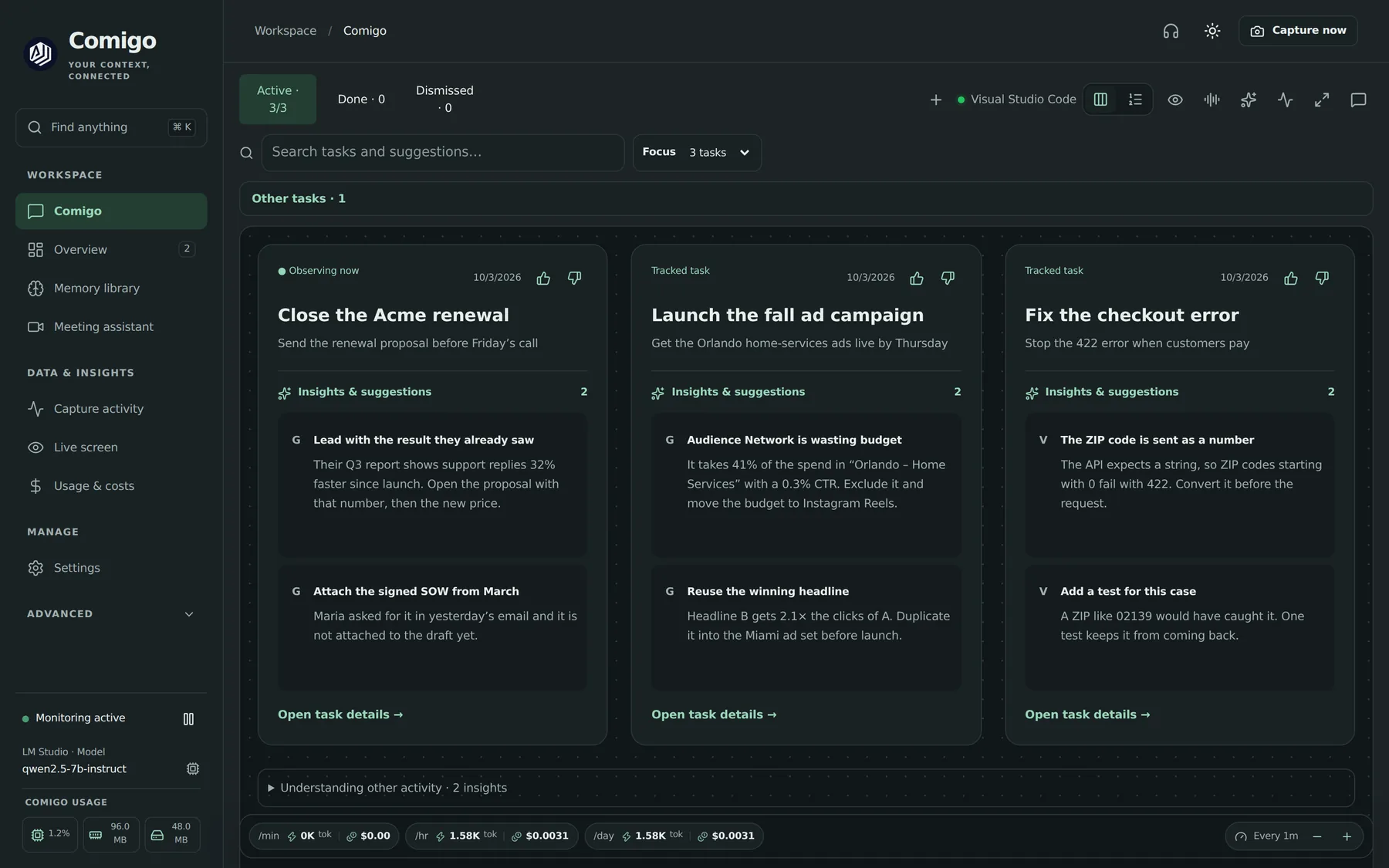
A secretary that never misses a detail.
Comigo follows along quietly and speaks up the moment there’s something worth knowing.
Watches along with you
With your permission, Comigo reads your screen in real time and understands what you’re working on, in every app.
Listens to your calls
In meetings it catches names, numbers, terms and promises, and shows talking points and action items as people speak.
Insights, tips and explanations
Short notes appear when they help: a missing attachment, wasted ad budget, the cause of a bug, a term you don’t know.
Tracks everything you’re juggling
Work in parallel becomes a few task cards, each with its goal and its own suggestions, so nothing slips.
Remembers for you
Decisions, client preferences and meeting notes are saved on your Mac and come back when they matter.
Ask it anything, out loud
Talk to Comigo about what’s on your screen and hear the answer. In English, Portuguese or Spanish.
Hard screens, made clear.
Pick what’s on your screen, then drag the slider. Left is what you see. Right is what Comigo tells you about it.
Take a look around.
Real screens from Comigo, filled with example work.
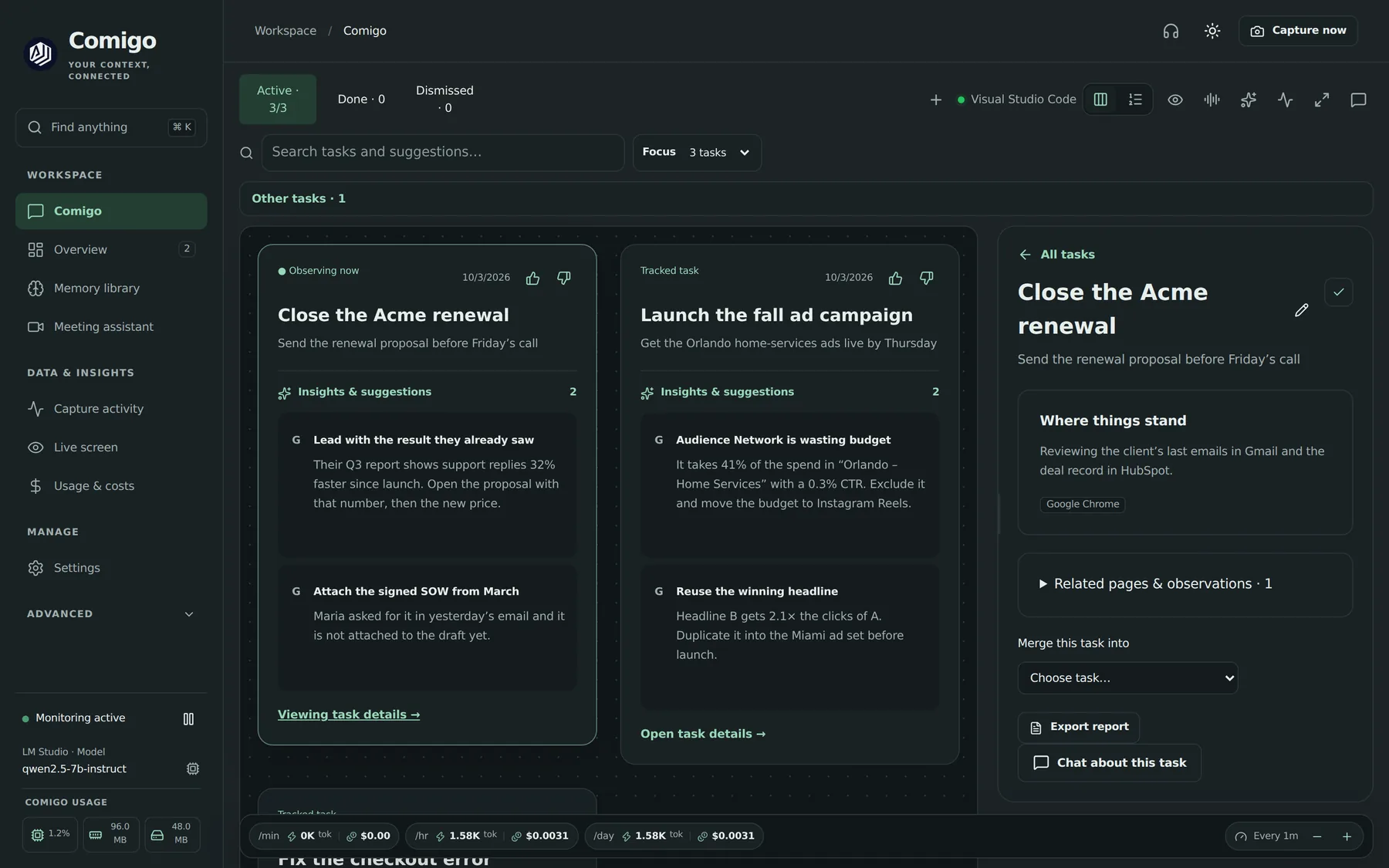
Where a task stands, what Comigo observed and a chat about it.
Sees. Understands. Helps.
Sees and hears what you allow
Your screen and, when you want, your calls and microphone. Text is read on your Mac whenever possible.
Understands what you’re doing
Comigo connects what happens across apps into the tasks you’re working on, in real time.
Tells you what matters
An insight, a tip or an explanation in a sentence or two, right when you need it. It advises; you decide.
Your work stays on your Mac.
Comigo asks only for the permissions it needs and keeps the controls that matter visible and reversible.
Permissions it asks for: Screen Recording (to read the screen and system audio), Accessibility (to know the active app) and Microphone (only when you talk to Comigo).
Database on your deviceTasks, memories, conversations and settings are stored in a local database on your Mac.
Pause anytimeStop monitoring with one click or a keyboard shortcut. Privacy mute covers every app.
Sensitive apps excludedPassword managers, private browsing and banking apps are never observed. Add any app you want.
Your own API keyYou choose the AI provider and use your own key, or run a local model and keep everything offline.
Narrow MCP accessThe MCP server binds to 127.0.0.1, is read-only and never returns screenshots, audio or credentials.
Free for your Mac.
Comigo is free. Bring your own AI model key, or use a free local model with LM Studio.
Install in two minutes
Open the .dmg and drag Comigo to Applications.
Open it the first time with right-click → Open.This build isn’t notarized by Apple yet, so macOS asks once. You can also use System Settings → Privacy & Security → Open Anyway.
Allow the permissions Comigo asks for.Screen Recording, Accessibility and, if you want voice, Microphone.
Pick your AI model in Settings → AI models.Paste an OpenRouter, OpenAI or Anthropic key, or point it to LM Studio.
Questions, answered.
Is Comigo free?
Does my data leave my Mac?
Does it work on Windows or Intel Macs?
Why does macOS warn me when I open it?
Will Comigo do things for me?
Can AI2 build something like this for my company?
Want an AI assistant built for your team?
We design custom AI assistants and automations around how your business works, in English or Portuguese.